Window Layout & Sizing (JVM & Wasm)
During local test development and visual inspection, windows defaulting to the screen center can overlap your IDE or terminal. Parikshan provides granular command-line controls to specify window dimensions, screen placement coordinates, and automated side-by-side tiling for Desktop (JVM) and Web (Wasm) targets.
[!NOTE] Window sizing and positioning flags apply to Desktop (JVM) and Web (WasmJs) targets. Mobile emulators and iOS simulators operate with fixed OS viewport dimensions.
Window Sizing
You can specify global dimensions applied uniformly to both Desktop and Web, or configure each target independently:
# Uniform mobile-dimension viewport (360x720) across Desktop and Web
./gradlew e2eTest --targets=jvm,wasm --window-size=360x720

# Independent sizing per target
./gradlew e2eTest \
  --targets=jvm,wasm \
  --desktop-window-size=400x800 \
  --wasm-window-size=600x900
Screen Placement & Coordinates
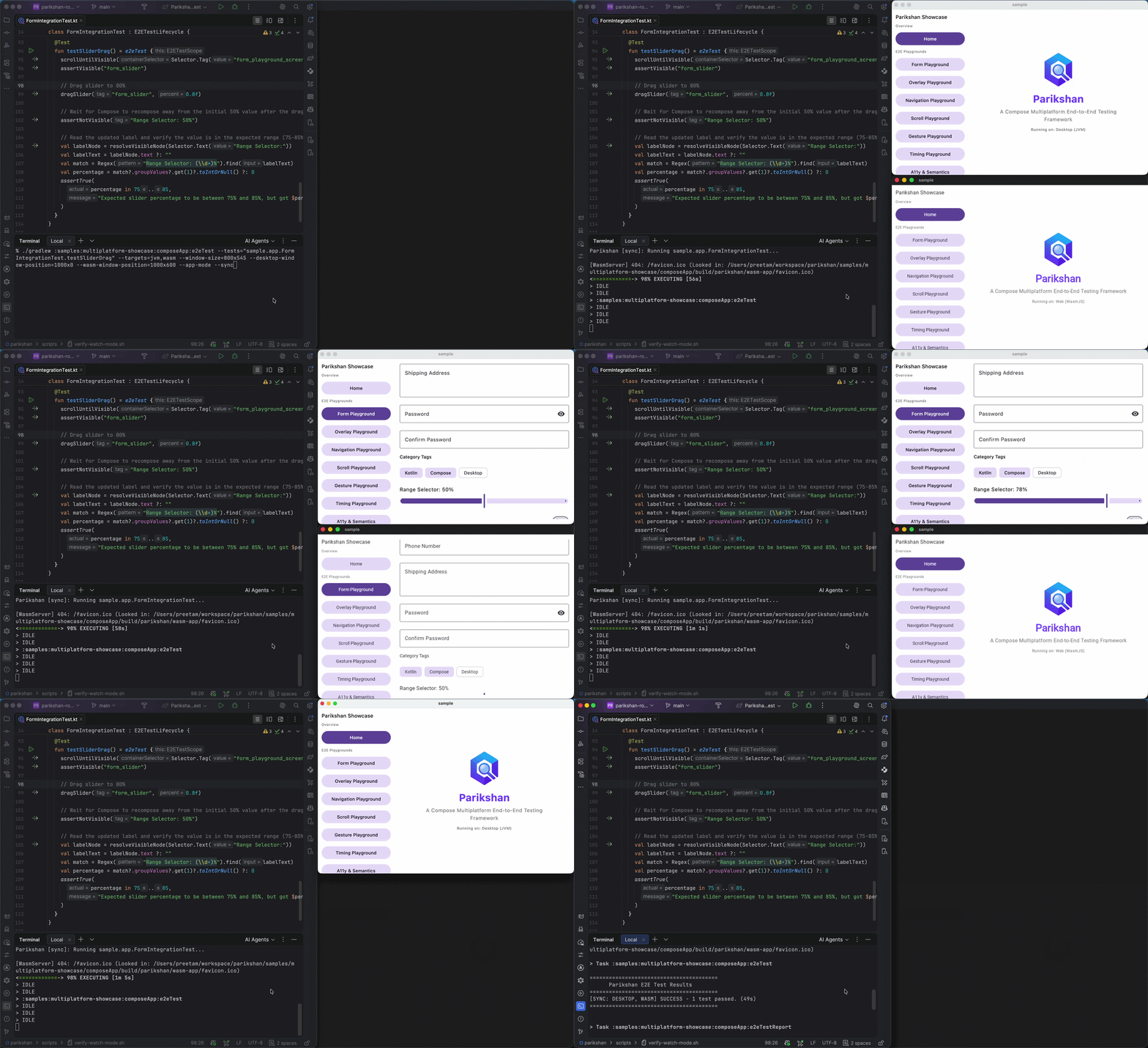
Control the exact screen coordinates (<x>,<y> or <x>x<y>) where each window opens:
./gradlew :samples:multiplatform-showcase:composeApp:e2eTest \
  --tests="sample.app.FormIntegrationTest.testSliderDrag" \
  --targets=jvm,wasm \
  --window-size=800x545 \
  --desktop-window-position=1000x0 \
  --wasm-window-position=1000x600 \
  --app-mode \
  --sync
Side-by-Side Layout (--layout=side-by-side)
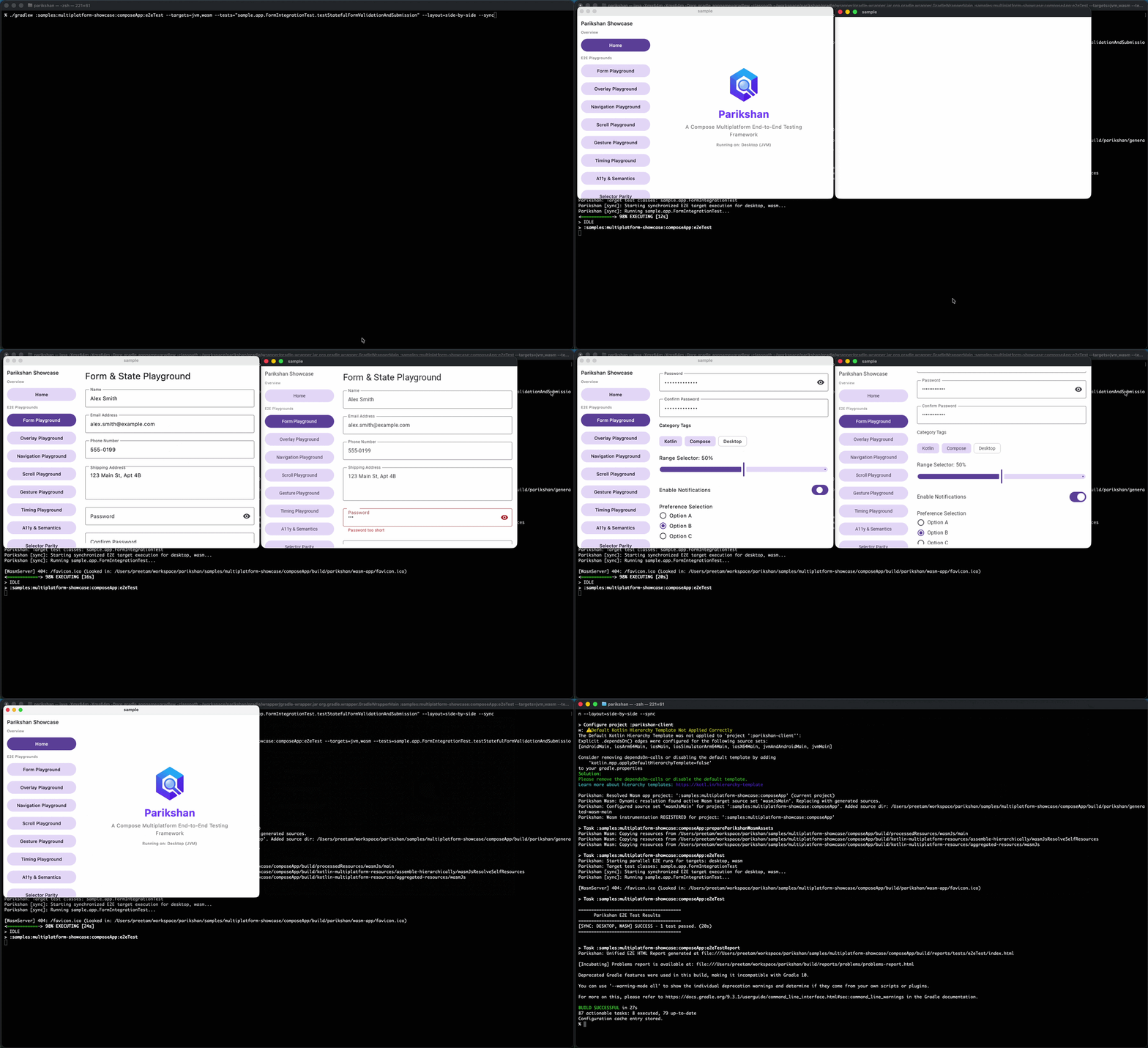
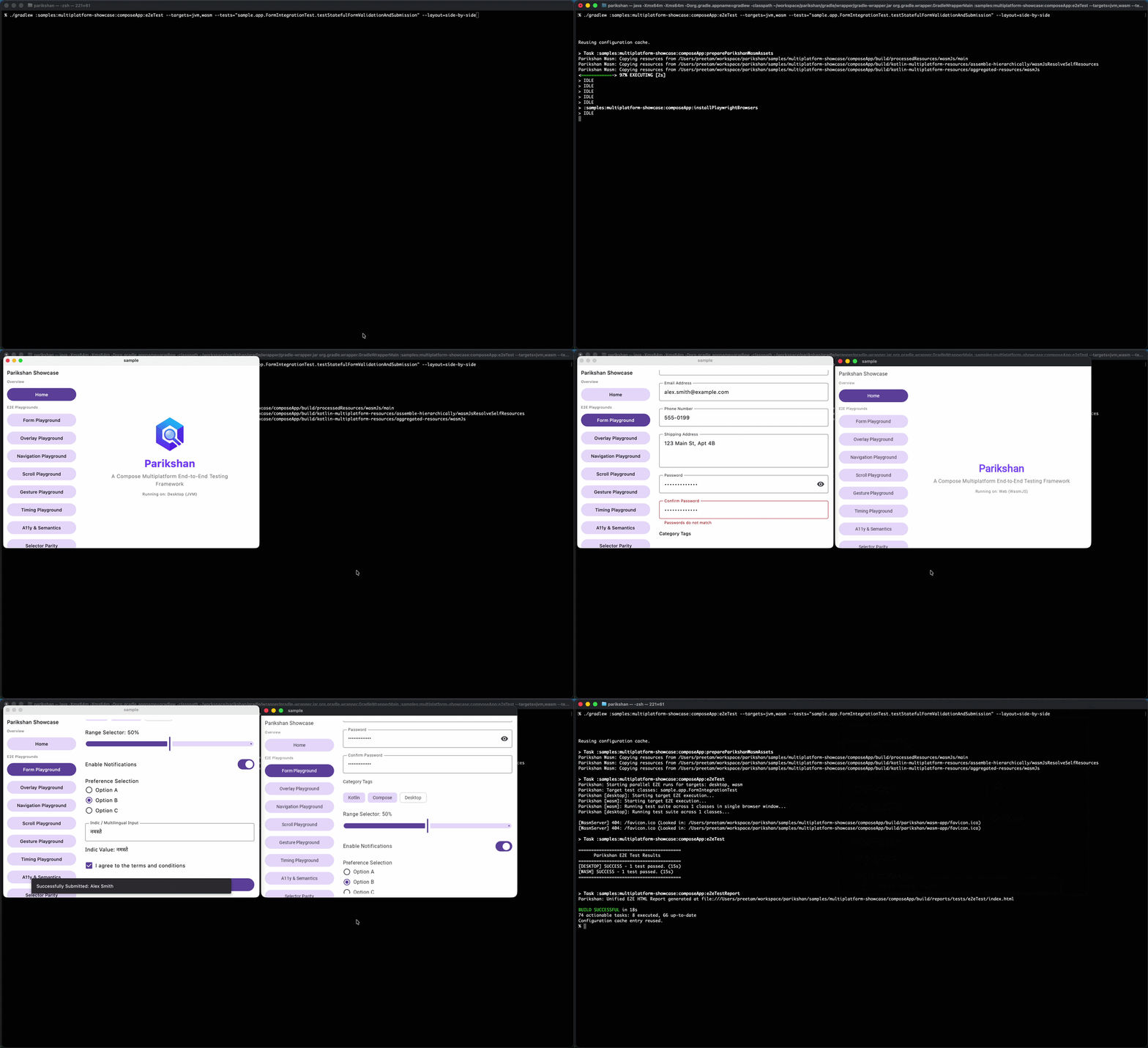
The --layout=side-by-side option automatically tiles Desktop and Web windows adjacent to each other on your screen:
./gradlew :samples:multiplatform-showcase:composeApp:e2eTest \
  --targets=jvm,wasm \
  --tests="sample.app.FormIntegrationTest.testStatefulFormValidationAndSubmission" \
  --layout=side-by-side \
  --sync
Docking Windows Alongside Your IDE
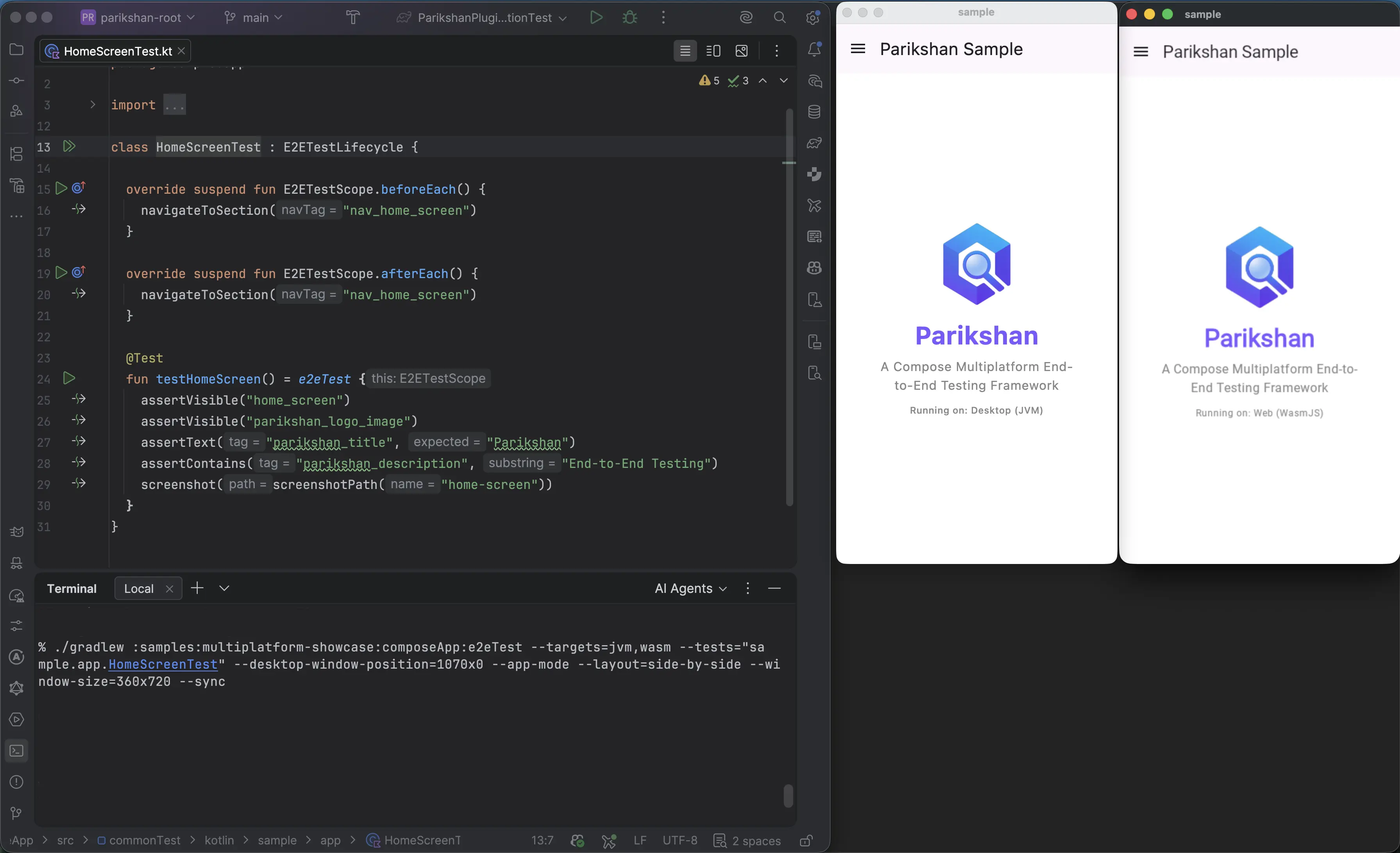
To position tiled mobile-sized windows next to your IDE workspace without window overlap, combine positioning, sizing, standalone app mode, and side-by-side tiling:
./gradlew :samples:multiplatform-showcase:composeApp:e2eTest \
  --targets=jvm,wasm \
  --tests="sample.app.HomeScreenTest" \
  --desktop-window-position=1070x0 \
  --app-mode \
  --layout=side-by-side \
  --window-size=360x720 \
  --sync
Standalone App Mode for Web
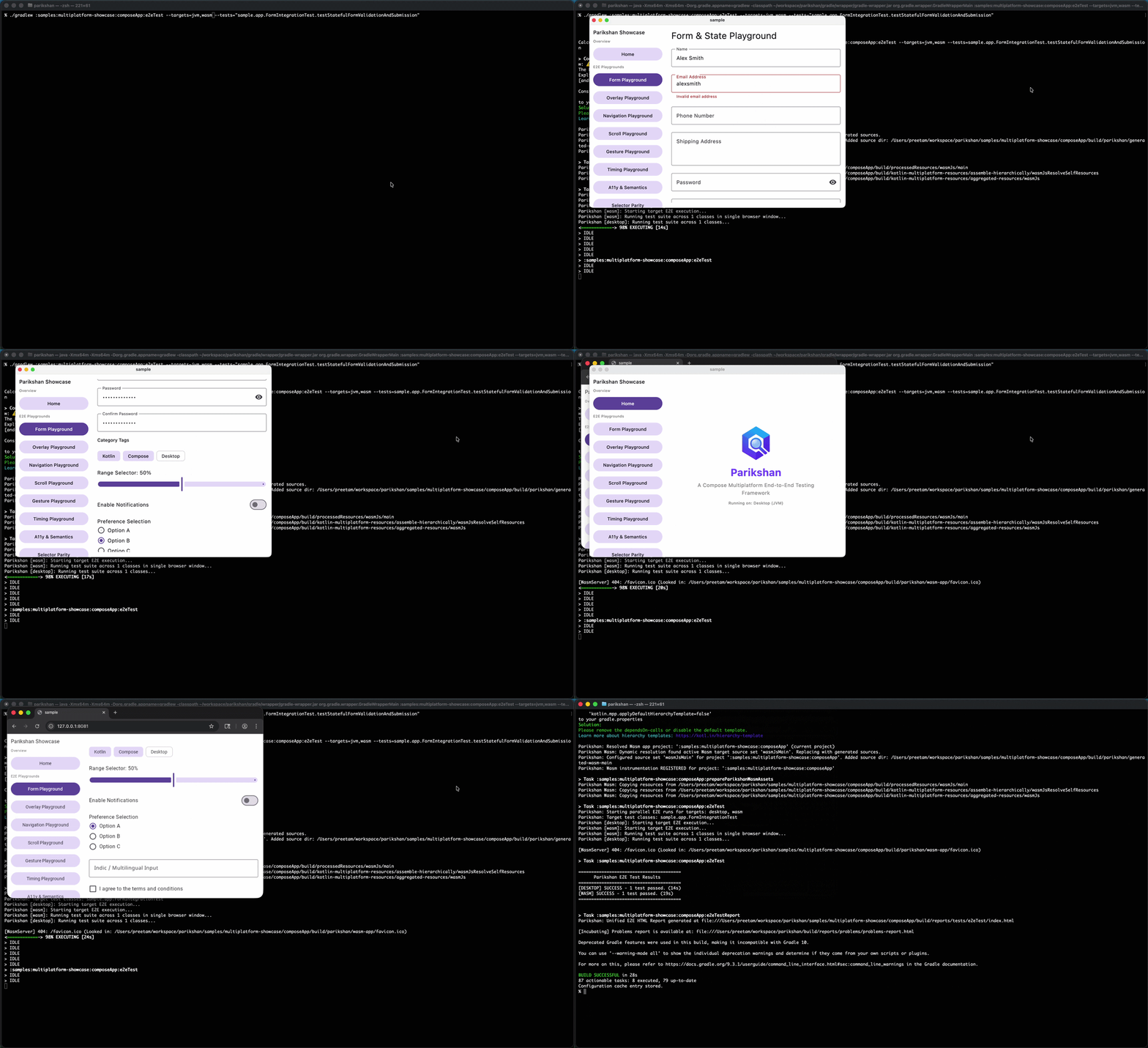
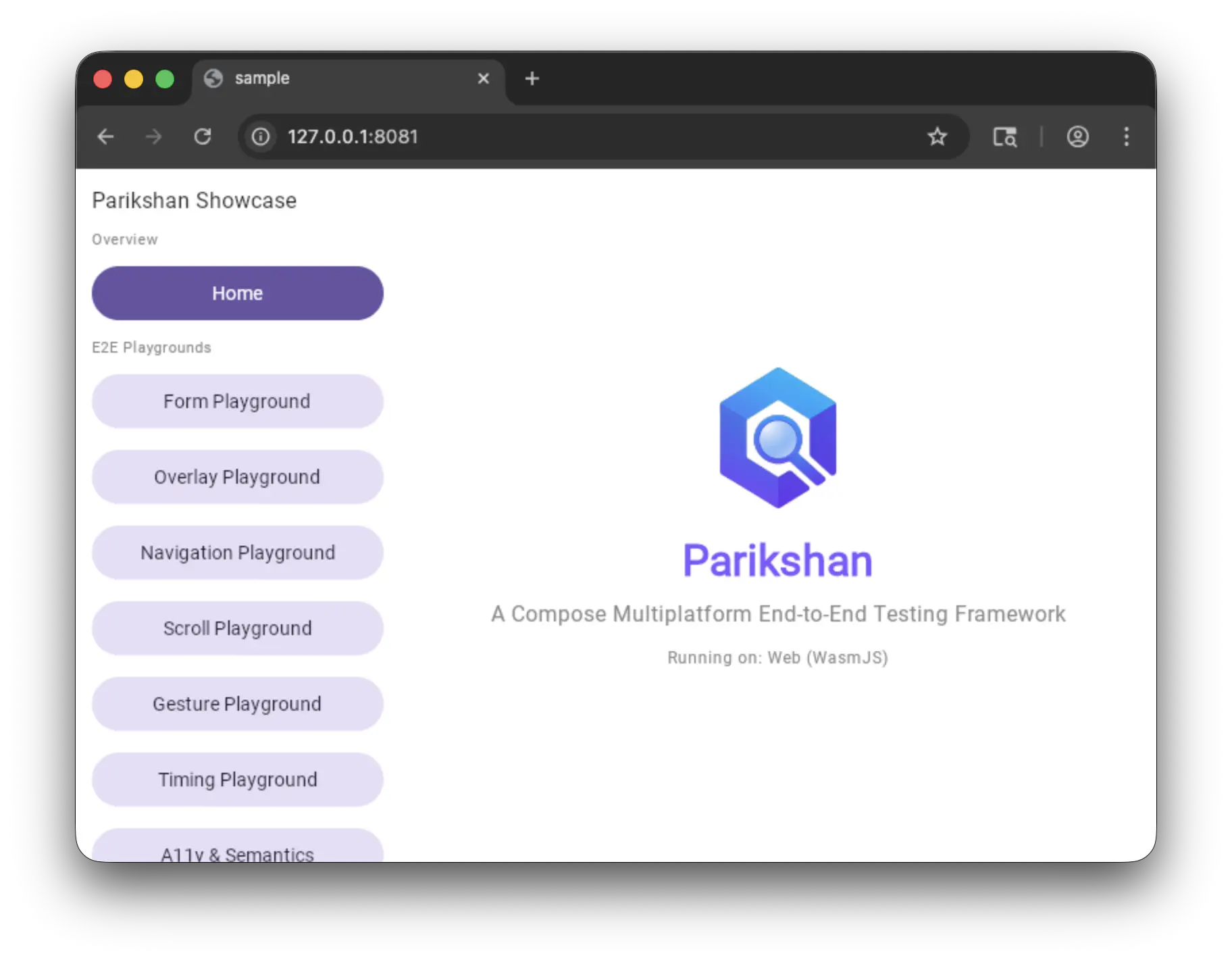
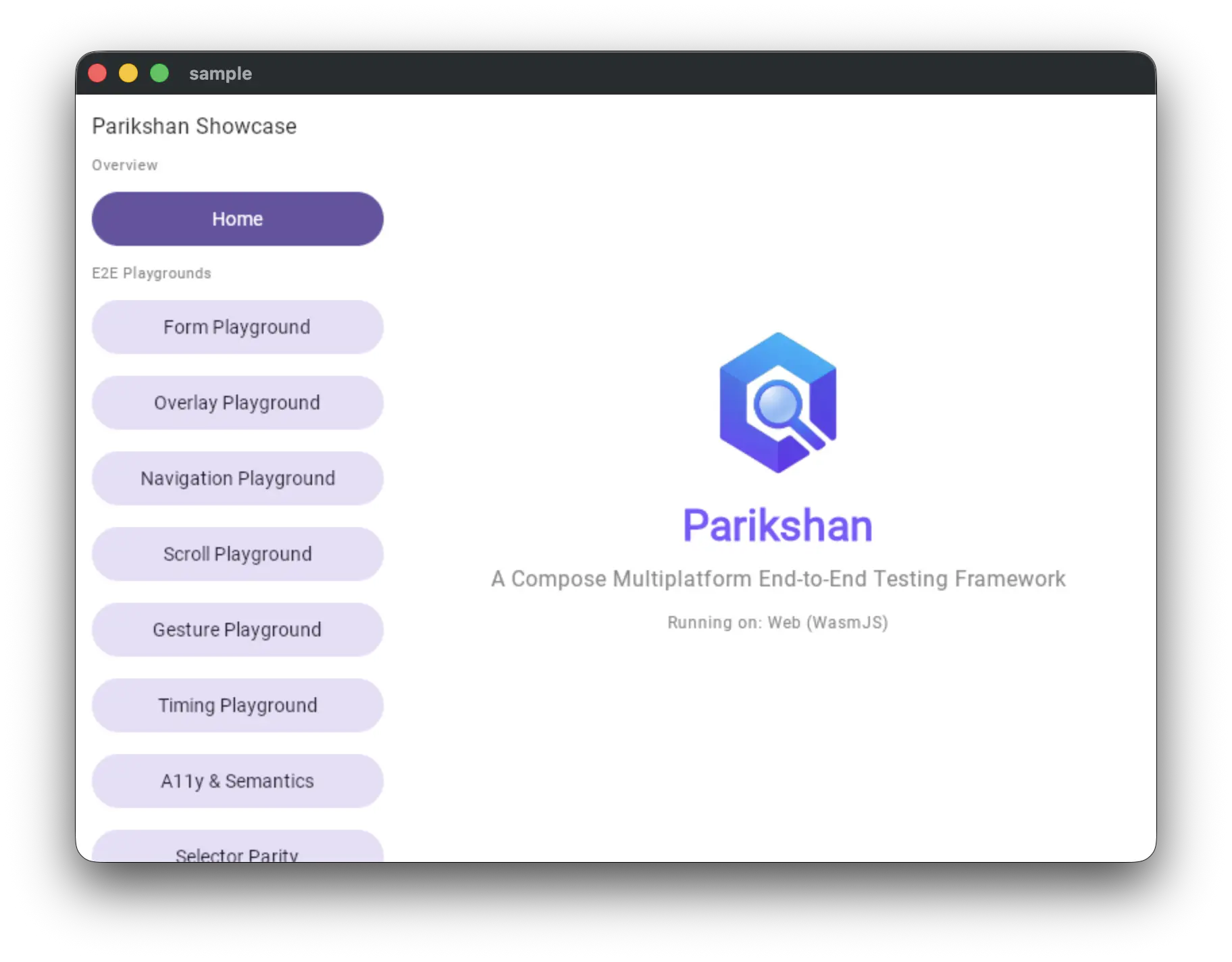
By default, Wasm tests launch in a standard browser window with navigation bars. Passing --app-mode launches Chromium in standalone application mode, hiding the URL address bar, navigation buttons, and tab strip for a clean application viewport:
# Standard browser window
./gradlew e2eTest --targets=wasm --tests="sample.app.HomeScreenTest"

# Standalone app window
./gradlew e2eTest --targets=wasm --tests="sample.app.HomeScreenTest" --app-mode
| Standard Browser Viewport | Standalone Application Viewport (--app-mode) |
|---|---|
 |
 |